


How to Create Multiple Versions of the Same Method in Empower - Tip242
OBJECTIVE or GOAL
When any type of method is created it starts as Method Version 1. If the method is modified and saved under the same name, the version increments. Here's how:
ENVIRONMENT
- Empower
- Empower Tip of the Week #242
PROCEDURE
STEP 1
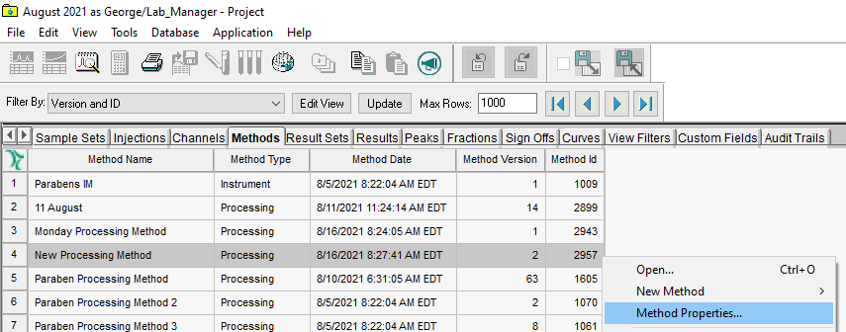
The Methods tab in the project window only displays the current version of the method. Create a View Filter that includes the ‘Version’ and ‘ID Numbers’. New Processing Method displays ‘Method Version 1’ (figure 1).

STEP 2
A change was made to the method by turning on System Suitability, saving it with the same name and it now displays ‘Method Version 2’ (figure 2).

STEP 3
To compare the versions, right click on the ‘Method’ and select ‘Method Properties’ (figure 3).
STEP 4
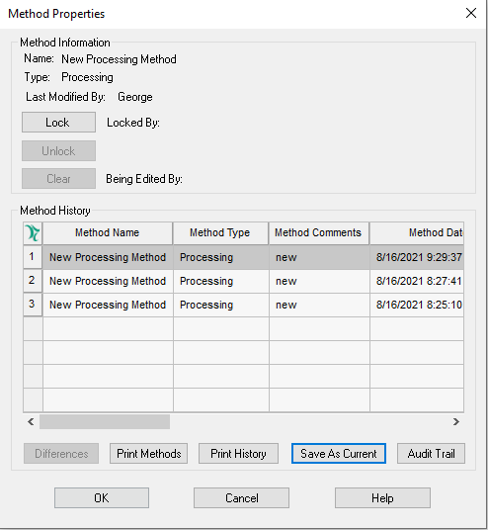
Highlight the two versions and click ‘Differences’ (figure 4).

STEP 5
In ‘Method Version 1’, System Suitability was ‘OFF’ and in ‘Method Version 2’, it is ‘ON’ (figure 5).

STEP 6
After processing the data with ‘Method Version 2’, the System Suitability calculations have been done
(figure 6).

STEP 7
Make ‘Method Version 1’ the current version. Highlight ‘Method Version 1’ in Method Properties and click ‘Save As Current’. Click ‘yes’ to the message (figure 7).

STEP 8
A third version is created, it is essentially a copy of ‘Method Version 1’. The original ‘Method Version 1’ is left intact (figure 8).
STEP 9
The Method Version is updated in the Methods table in the Project Window (figure 9).

STEP 10
Processing the data with ‘Method Version 3’, you’ll notice there are no System Suitability calculations, it is turned off in this version of the method (figure 10).

STEP 11
Empower tracks which version of a Processing Method was used to generate a result, making things easier. The result with ‘Result ID 2969’ was generated using ‘New Processing Method ID 2957’ (version 2). The newer result with ‘Result ID 2971’ was generated using ‘New Processing Method ID 2970’ (version 3) (figure 11).

ADDITIONAL INFORMATION